When wanting to refund a guest within Hop, all you need to do is navigate to the View Transactions page by going to Manage Reservations, search for the guest or reservation number within the search bar.
Click the down arrow next to the RES or RESX number depending on which side you would like to add the refund. Click 'View Transactions'.
You will then see your payment you wish to refund which will show a blue wheeled arrow as shown below:
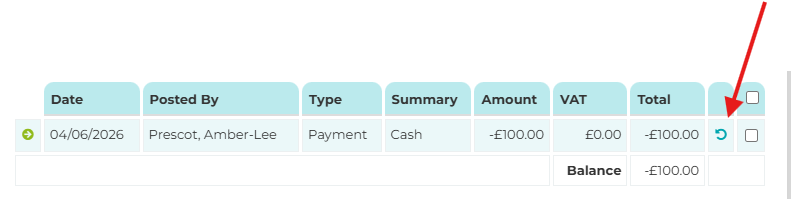
Click on this arrow and a pop up will appear asking you how much you want to refund the guest and the reason for the refund.
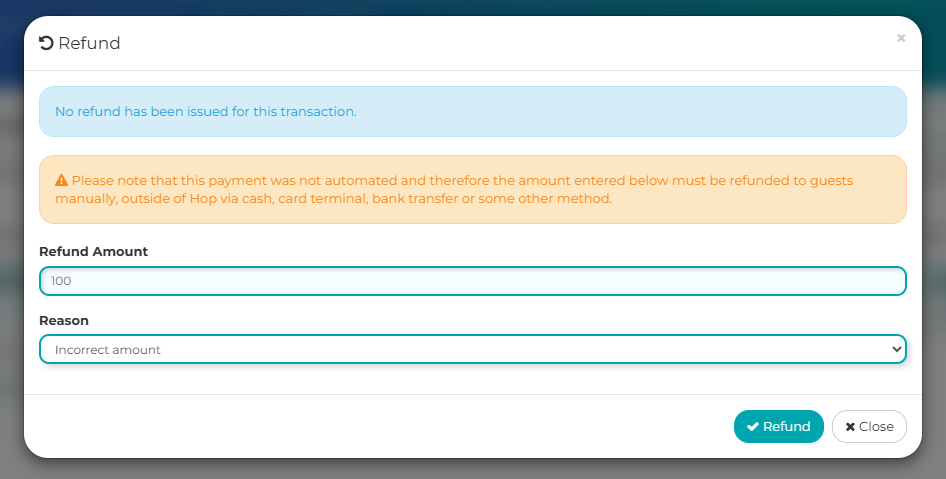
If you have Admin rights on your user, you will be able to type over the amount field if you want to partially refund or refund a specific amount.
If you don't have Admin rights and want to change the amount, you will need to ask a member of staff who has Admin rights to help you with this.
You can choose a reason from the default options within the dropdown list or you can create a new reason by heading to Administration > Configuration > Option Sets and choose Transaction Refund Reason.
Then click 'Refund.'
You will then see the refund displayed on the View Transactions screen. If you have refunded a credit card that you took payment on through Hop, it will take however long their bank usually takes to refund transactions e.g. 3-5 working days.

Was this article helpful?
That’s Great!
Thank you for your feedback
Sorry! We couldn't be helpful
Thank you for your feedback
Feedback sent
We appreciate your effort and will try to fix the article