Custom Fields on Reservations
We’re excited to introduce Custom Fields for Reservations giving you more flexibility to capture and manage the information that matters most to your business.
Setting Up Custom Fields
- Go to Main Menu > Reservations > Custom Fields.
- From this screen, you can:
- View any existing custom fields
- Add new fields
- Edit or delete existing ones
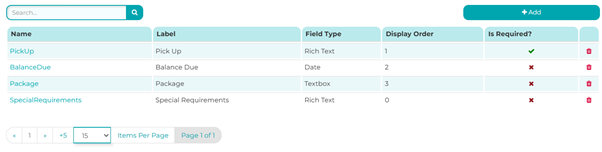
Click Add at the top right of the screen.
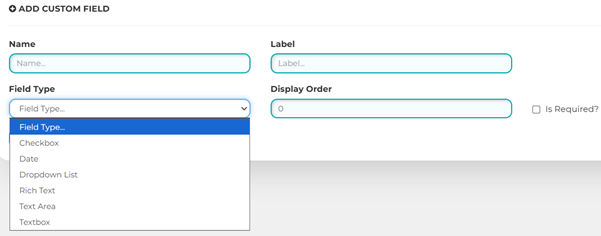
Field Types
There are six field types available to suit different needs, including checkboxes, date fields, and drop-down lists.
You can also set certain custom fields as mandatory.
Updating Custom Fields on a Reservation
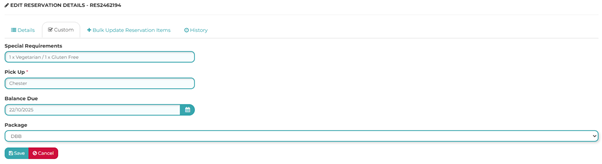
- Open a reservation and click on the RES number.
- A new tab labelled Custom will appear.
- You’ll find your custom fields displayed in the order you’ve chosen.
- Fields marked with a red asterisk are mandatory
.
Using Custom Fields in Emails and Reports
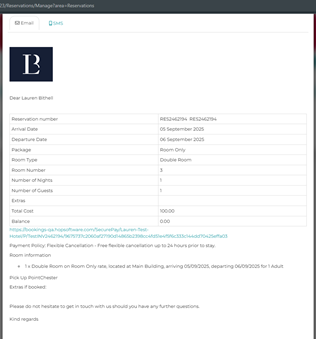
- Email Templates:
Custom fields can be added to your email templates. They are easily identifiable — each one is prefixed with CF. - Reports:
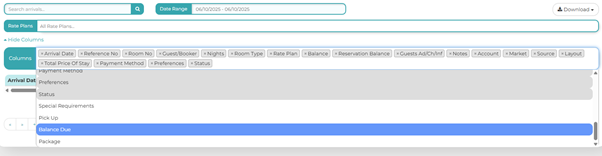
Custom fields can be added as columns to both the Arrivals and Reservations reports.
Was this article helpful?
That’s Great!
Thank you for your feedback
Sorry! We couldn't be helpful
Thank you for your feedback
Feedback sent
We appreciate your effort and will try to fix the article